Purpose :
Tujuan :
1. To know what is the meaning of Mikrotik Routerboard
Dapat mengetahui pengertian dari Mikrotik Routerboard
2. To know what is the meaning of backup and restore configuration in Mikrotik Routerboard
Dapat mengetahui cara konfigurasi backup and restore di Mikrotik Routerboard
Materials :
Bahan :
1. Cabel UTP
Kabel UTP
2. Mikrotik Routerboard
Mikrotik Routerboard
3. Application Winbox
Aplikasi Winbox
Basic Concept :
Konsep Dasar :
- Understanding Mikrotik Routerboard
Pengertian Mikrotik Routerboard
RouterBOARD the hardware (router) designed by MikroTik. RouterBOARD has a variety of series and interface tailored to the needs. RouterOS RouterBOARD use as a software / operating system.
RouterBOARD merupakan hardware (Router) yang didesain oleh MikroTik. RouterBOARD memiliki beragam seri dan interface yang disesuaikan dengan kebutuhan. RouterBOARD menggunakan RouterOS sebagai software / sistem operasinya.
- Understanding Backup and Restore
Pengertian Backup dan Restore
Backup is the process of copying the file to copy the core file through compression process or not, so that at any time can be required to restore full back as before. Restore dan recovery adalah proses penting setelah backup. Backup akan menjadi sia-sia bila proses pengembalian dan perbaikan data sistem sulit dilakukan.
Backup yaitu proses menyalin file inti ke file salinan baik melalui proses kompresi maupun tidak, agar setiap saat dibutuhkan bisa di restore kembali seperti sebelumnya secara utuh. Restore and recovery is an important process after the backup. Backup will be futile if the return process and the improvement of data systems difficult.
Steps :
LANGKAH LANGKAH :
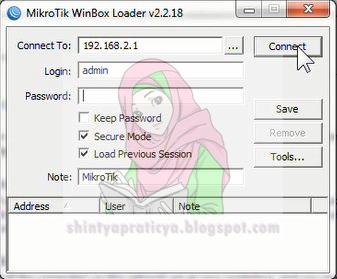
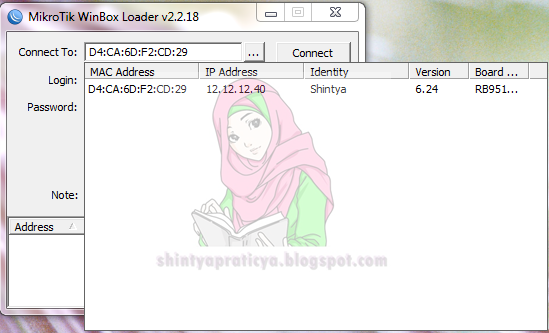
First we connect its application winbox
Pertama tama kita sambungkan aplikasi winbox nya

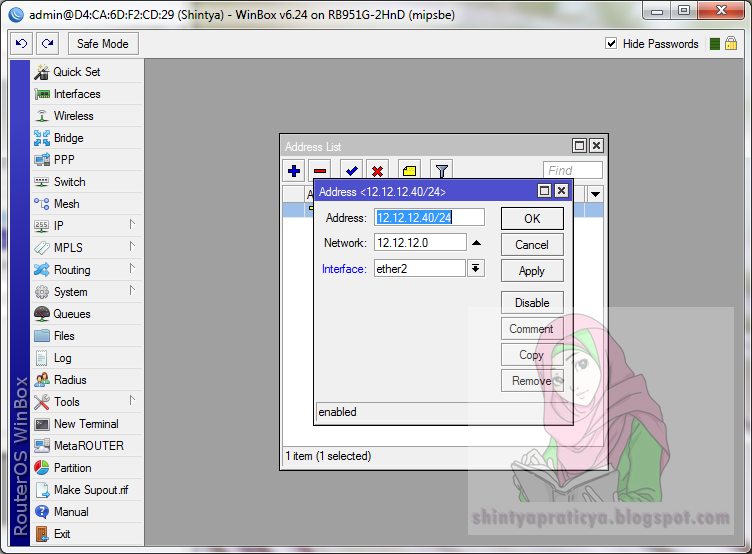
Select the IP - IP Address to start adding
Pilih menu IP – Address untuk mulai menambahkan IP

Select the "+" to add the IP addree here I am using IP 12.12.12.40/24 ether 2. Then click apply and ok
Pilih tanda “+” untuk menambahkan IP addree disini saya menggunakan IP 12.12.12.40/24 ether 2. Lalu klik apply dan ok
KONFIGURASI BINARY FILE TANPA PASSWORD
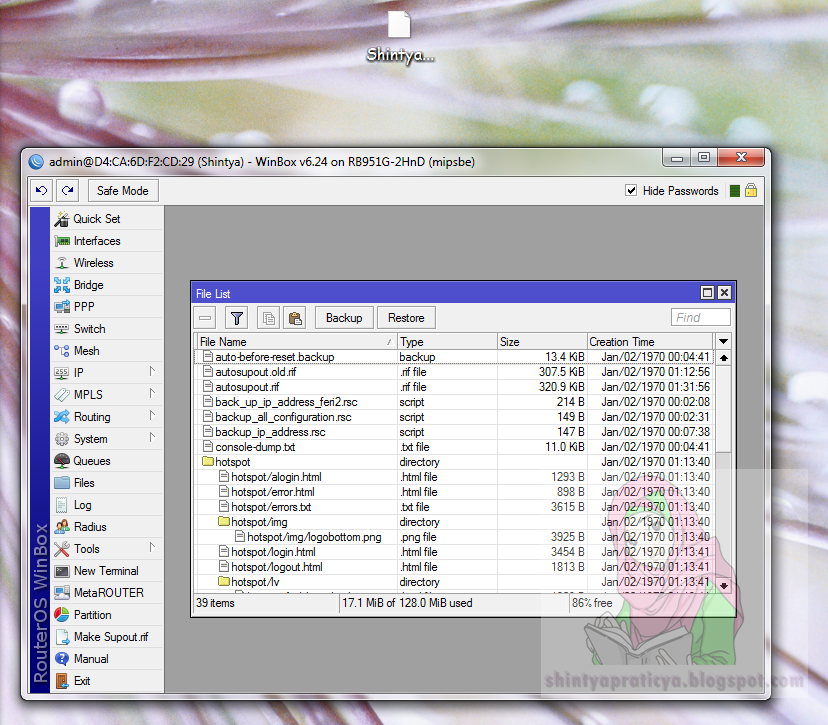
Click the File menu and select the backup, at this stage just emptied name and password
Klik menu file lalu pilih backup, pada tahap ini nama dan passwordnya dikosongkan saja

Then the file name will appear automatically as shown below
Maka akan muncul nama file otomatis seperti pada gambar dibawah ini

Then copy the files that have been backed up earlier to your desktop
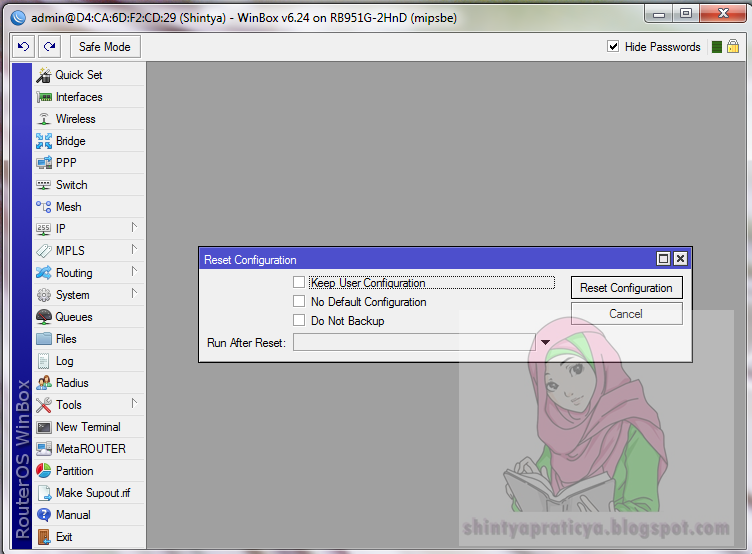
Then click the menu system and select reset configuration checklist on "no default configuration"
Kemudian copy kan file yang telah dibackup tadi ke desktop
Kemudian klik menu system lalu pili reset configuration ceklist pada “ no default configuration “
Open again your winbox application
Buka kembali aplikasi winbox anda

Go to the menu files and then paste the fie that has been copied to routerboard
Masuk ke menu files kemudian paste kan fie yang telah dicopy tadi ke routerboard

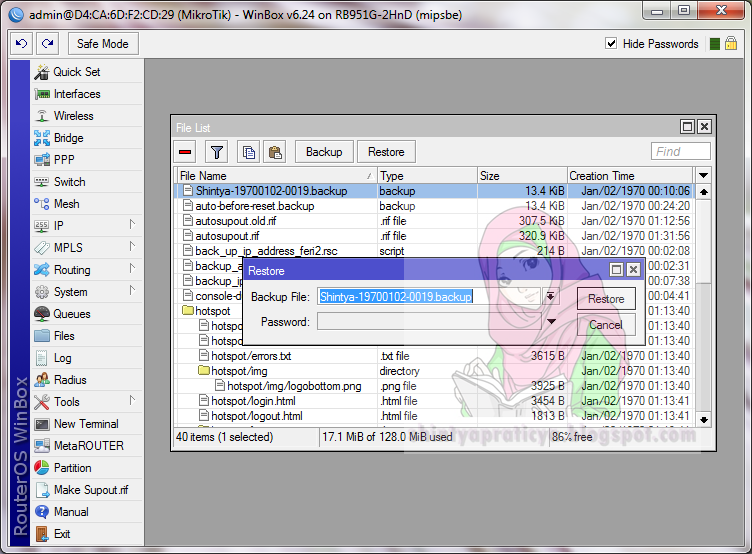
Choose Restore to restore the previous configuration, select the restore again click yes and then reboot
Pilih restore untuk mengembalikan konfigurasi sebelumnya, pilih restore lagi klik yes kemudian reboot
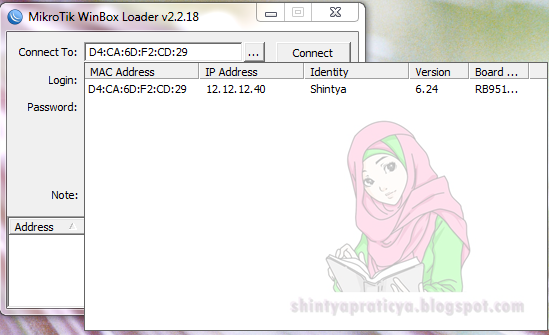
Open again your winbox application
Buka kembali aplikasi winbox anda
\
CONFIGURATION BINARY FILE WITH PASSWORD
KONFIGURASI BINARY FILE DENGAN PASSWORD
Select files, then the backup. And fill in your name and password and backup
Pilih files, kemudian backup. Dan isikan nama dan passwordnya lalu backup
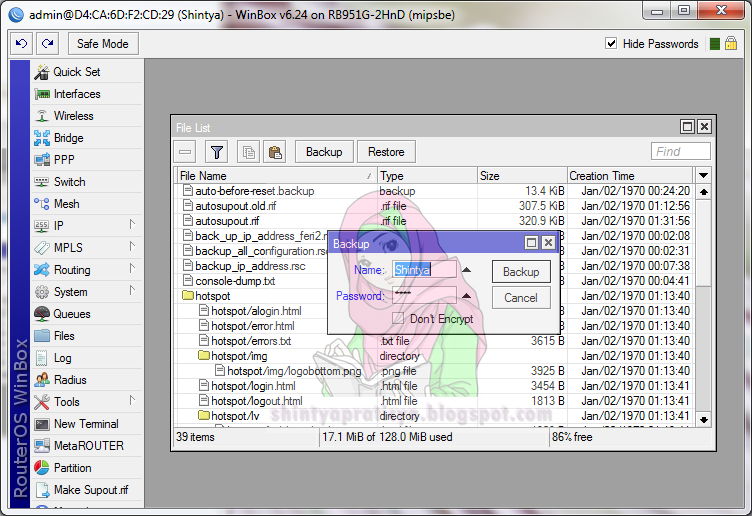
It will appear in the backup files that have been before, and then copy the files you've backup to the desktop
Maka akan muncul file yang telah di bakup tadi, kemudian copy kan file yang telah anda backup ke dekstop
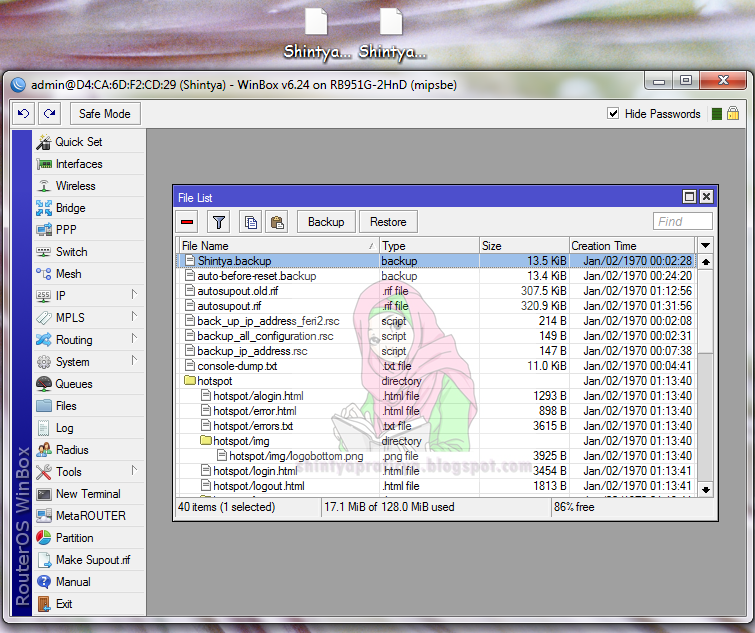
Then copy and paste the files that you have backed up earlier from the desktop to routerboard
Then click the menu system and pili reset the configuration checklist "no default configuration"
Select the file that is already in the backup and then select the restore and then reboot
Kemudian copy paste kan file yang telah dibackup tadi dari desktop ke routerboard
Kemudian klik menu system lalu pili reset configuration ceklist pada “ no default configuration “
Pilih file yang sudah di backup kemudian pilih restore kemudian reboot

Open again your winbox application
Buka kembali aplikasi winbox anda
CONFIGURATION SCRIPT FILE
KONFIGURASI SCRIPT FILE
Open the terminal on winbox then typing the command "system backup save name = shintya_no"
Buka terminal pada winbox kemudian ketikan perintah “ system backup save name=shintya_no “

Then check on its file list, then there will be a file shintya_no
Kemudian cek pada file list nya, maka aka ada file shintya_no
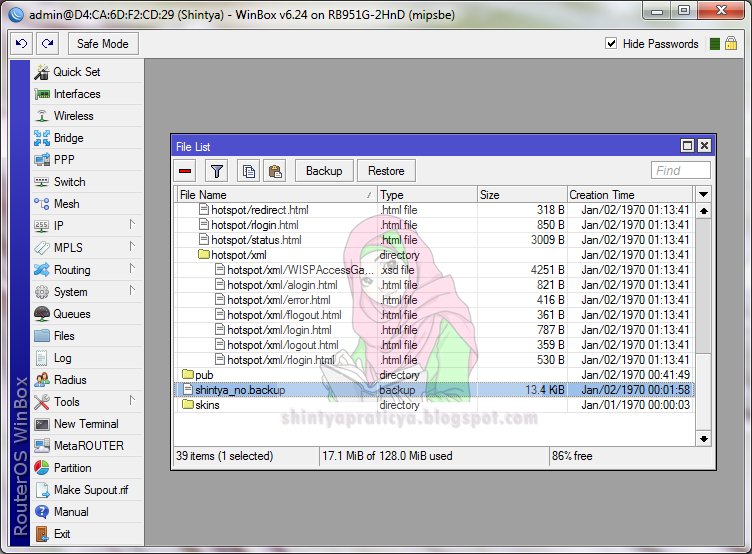
Then select them and then restore the backup file
Kemudian pilih file backup tadi kemudian restore
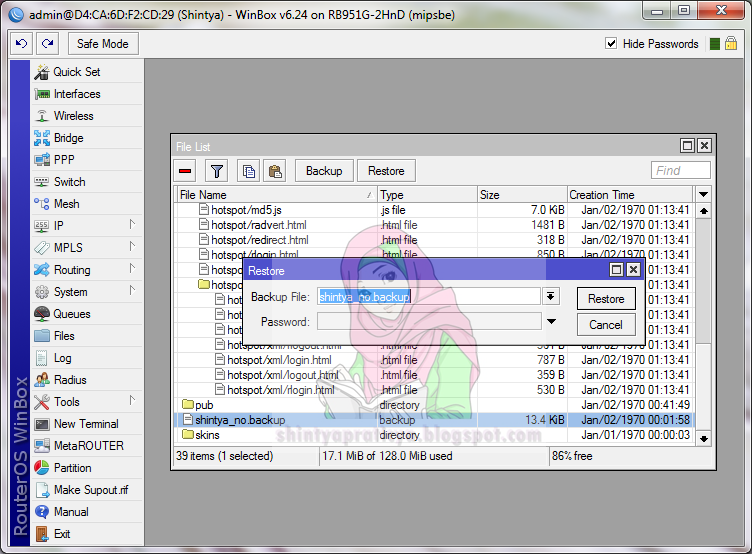
Open again your winbox application
Buka kembali aplikasi winbox anda

Open a new terminal and typing the command "system backup save name = shintya_passwd password = 1234"
Buka new terminal lalu ketikan perintah “ system backup save name=shintya_passwd password=1234 “
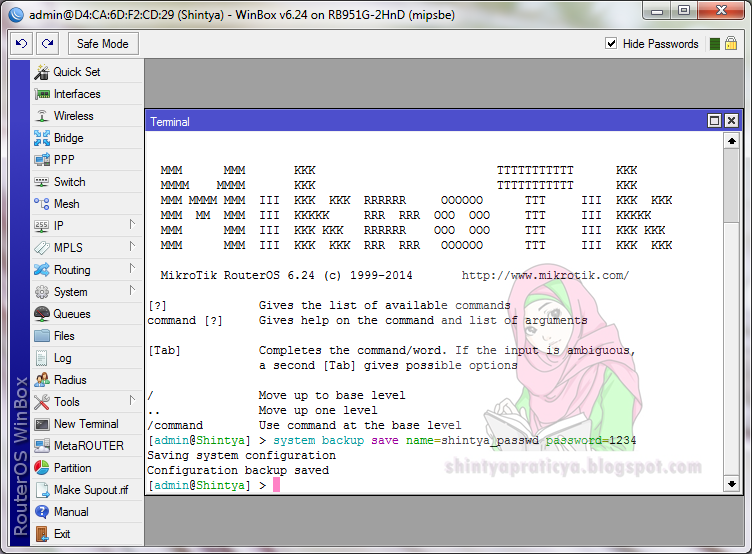
Then again restore his shintya_passwd file, by selecting the file and then restore, enter password
Kemudian restore lagi file shintya_passwd nya , dengan cara pilih file nya lalu restore, masukan password nya

Open again your winbox application
Buka kembali aplikasi winbox anda
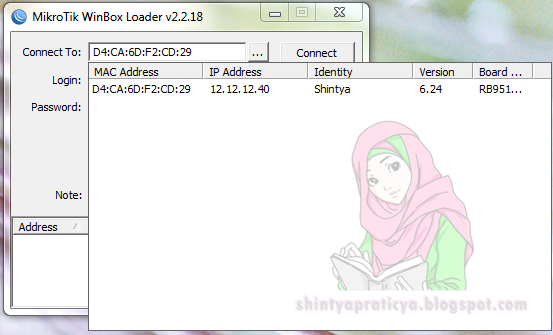
Open a new terminal and typing the command "export file = backup_all_configuration" to backup all configuration
Buka new terminal kemudian ketikan perintah “ export file=backup_all_configuration “ hal ini bertujuan untuk membackup semua konfigurasi

Then copy and paste the results of routerboard your backups to the desktop
Kemudian copy paste kan hasil backup dari routerboard anda ke dekstop
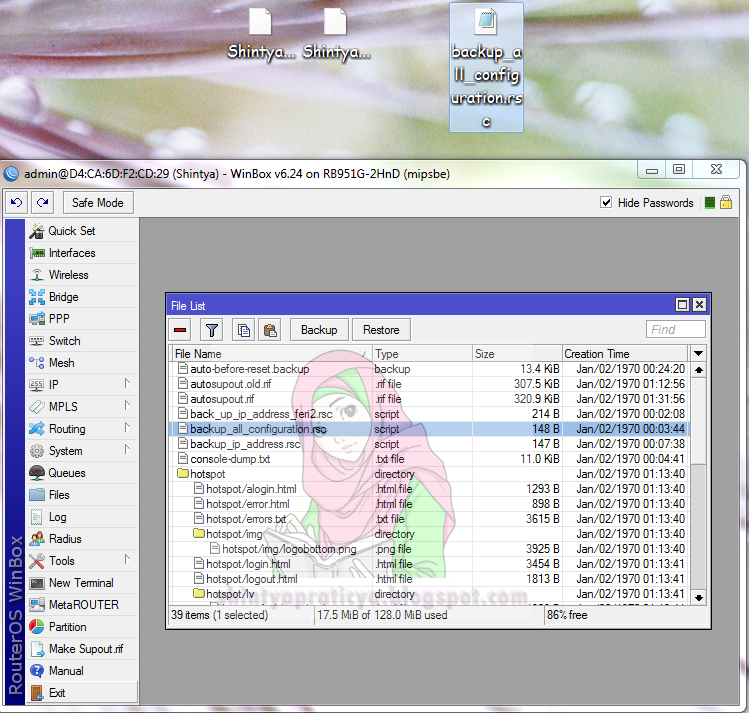
Open backup_all_configuration existing file on the desktop using notepad, then change the IP ether 2 and save
Buka file backup_all_configuration yang ada di dekstop menggunakan notepad, kemudian ganti IP ether 2 lalu save
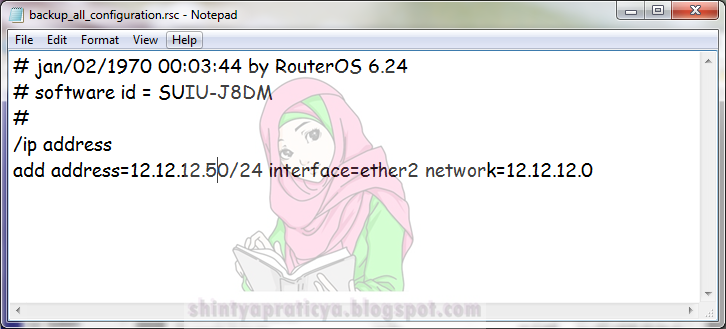
Reset winbox application you choose "no default configuration"
Reset aplikasi winbox anda pilih “ no default configuration “
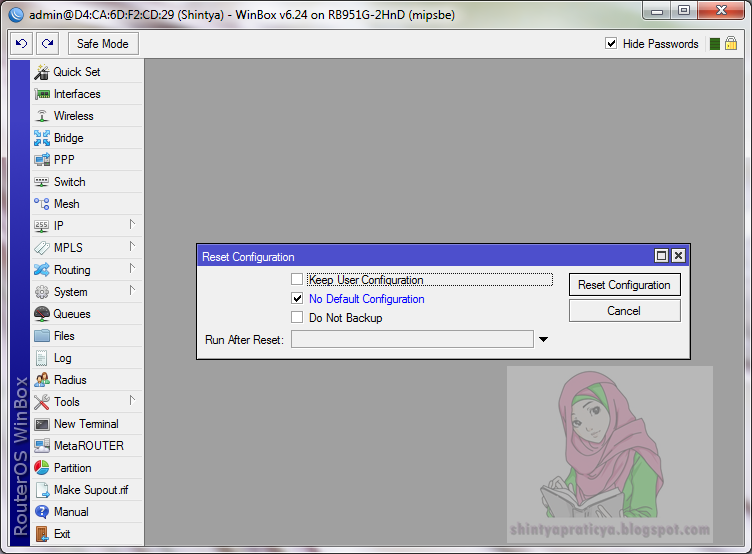
Then paste the file has been edited earlier from the desktop to the routerboard
Kemudian pastekan file yang telah di edit tadi dari desktop ke routerboard
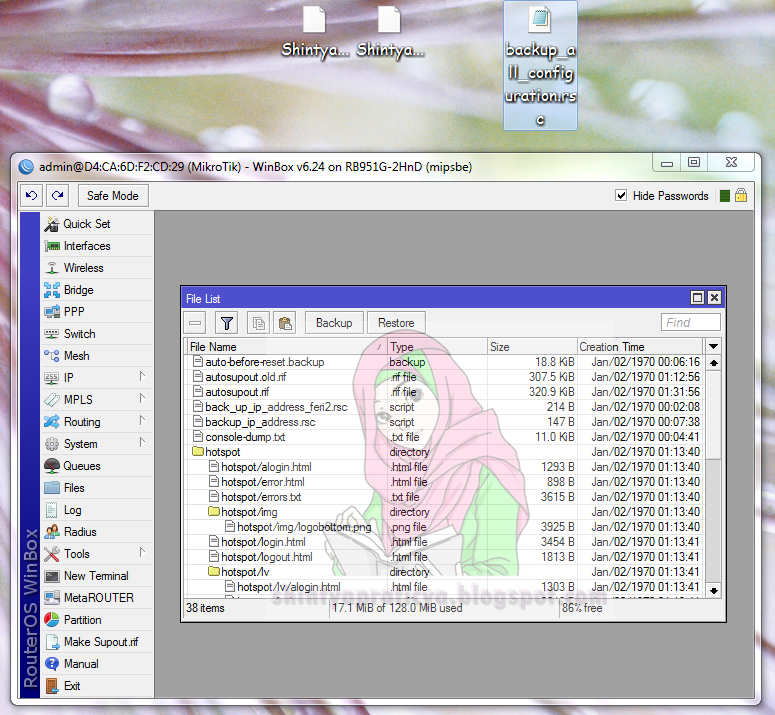
It will appear the file "backup_all_configuraion" which has you paste
Maka akan muncul file “ backup_all_configuraion “ yang telah anda paste tadi
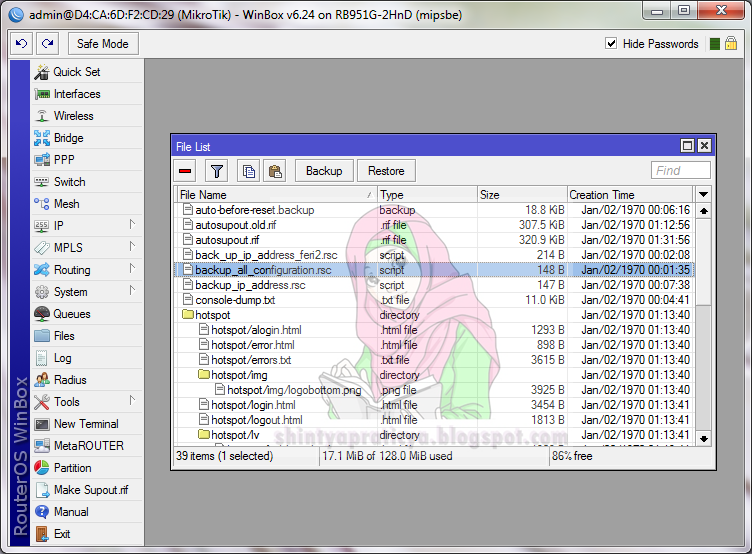
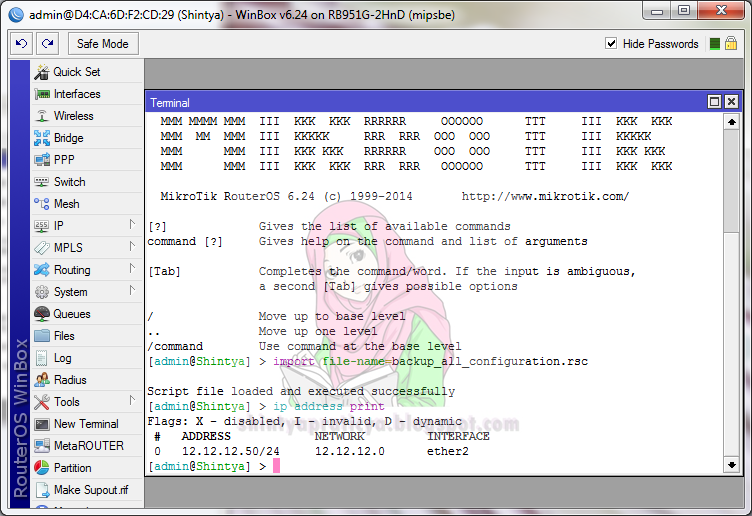
Go to the new terminal did import file and then check the IP address backup_all_configuration.rsc
Then the IP address will change
Masuk ke new terminal lakukan import file backup_all_configuration.rsc kemudian cek IP address
Maka IP address akan berubah